Open Claude Desktop Twins the first time
The app is not signed by Apple, so macOS asks you once to confirm that you want to open it. After that it opens normally, and updates install themselves.
Updated
Short answer: open the app once, click Done, then go to System Settings → Privacy & Security and click Open Anyway next to Claude Desktop Twins Premium. You only do this the first time.
Steps
- Open the DMG and drag Claude Desktop Twins Premium onto Applications.
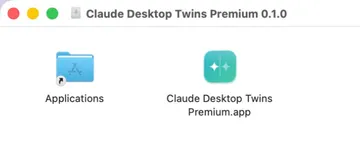
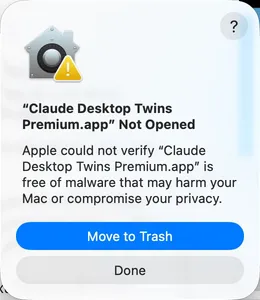
- Open Applications and double-click Claude Desktop Twins Premium. macOS says it was not opened because Apple could not verify it. Click Done.
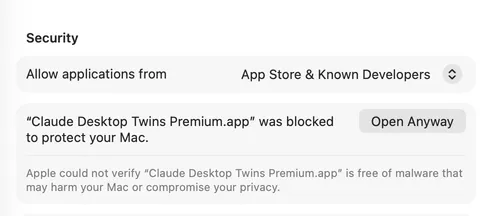
- Open System Settings → Privacy & Security. Scroll down to Security. Next to “Claude Desktop Twins Premium was blocked…”, click Open Anyway.
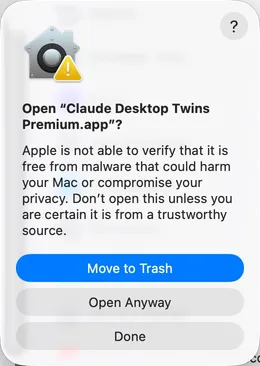
- Confirm with Open Anyway and your Mac password or Touch ID.
- The app’s icon appears in the menu bar. That is all; you will not be asked again.

On macOS 13 and 14 you can also Control-click the app in Applications, chooseOpen, and then Open in the dialog. Newer macOS versions removed that shortcut; use the steps above.
If it still does not open
Open Terminal and run:
xattr -dr com.apple.quarantine "/Applications/Claude Desktop Twins Premium.app"Then open the app again. This removes the “downloaded from the internet” mark from that one app only.
Why macOS asks
macOS checks that apps from the internet are signed and notarized by Apple. Claude Desktop Twins Premium is not, so macOS leaves the decision to you. Only open apps from people you trust. The free part of this app is open source atgithub.com/dakiquang/claude-desktop-twins, and the app makes no network calls except checking your licence and checking for updates (privacy).
Still stuck?
Write to support@claudedesktoptwins.com with your macOS version.